
Installing Daemons
Create a daemon in the app and install it on Linux, macOS, Windows or FreeBSD.
Requirements
| OS | Install method |
|---|---|
 Linux Linux | Docker with host networking, or the standalone binary |
 macOS macOS | Standalone binary |
 Windows Windows | Standalone binary |
 FreeBSD FreeBSD | Standalone binary |
Docker Desktop on macOS and Windows doesn't give containers access to the host's network interfaces, so those hosts run the binary. On every OS, the binary installs as a native background service — see Running as a Service.
Creating a Daemon
Go to Discover > Daemons and click Create Daemon. The wizard walks you through:
- Setup: operating system, site, polling mode, and daemon name
- Integrations: optionally add credentials, targeting all hosts or specific ones. They're auto-assigned to discovered hosts after the first scan.
- Install: pick the install method for that operating system; the wizard builds the matching artifact for you
The operating system chosen on Setup becomes the Daemon OS of every credential created on Integrations: Linux, macOS and FreeBSD set it to Linux, macOS, BSD, and Windows sets it to Windows. Once you create a credential, the operating system on Setup is locked. Remove the wizard's credentials to change it.
Finishing the wizard provisions the daemon: the server creates its record and mints an API key bound to it. You don't create a key yourself.
Choose an install method on the final step:
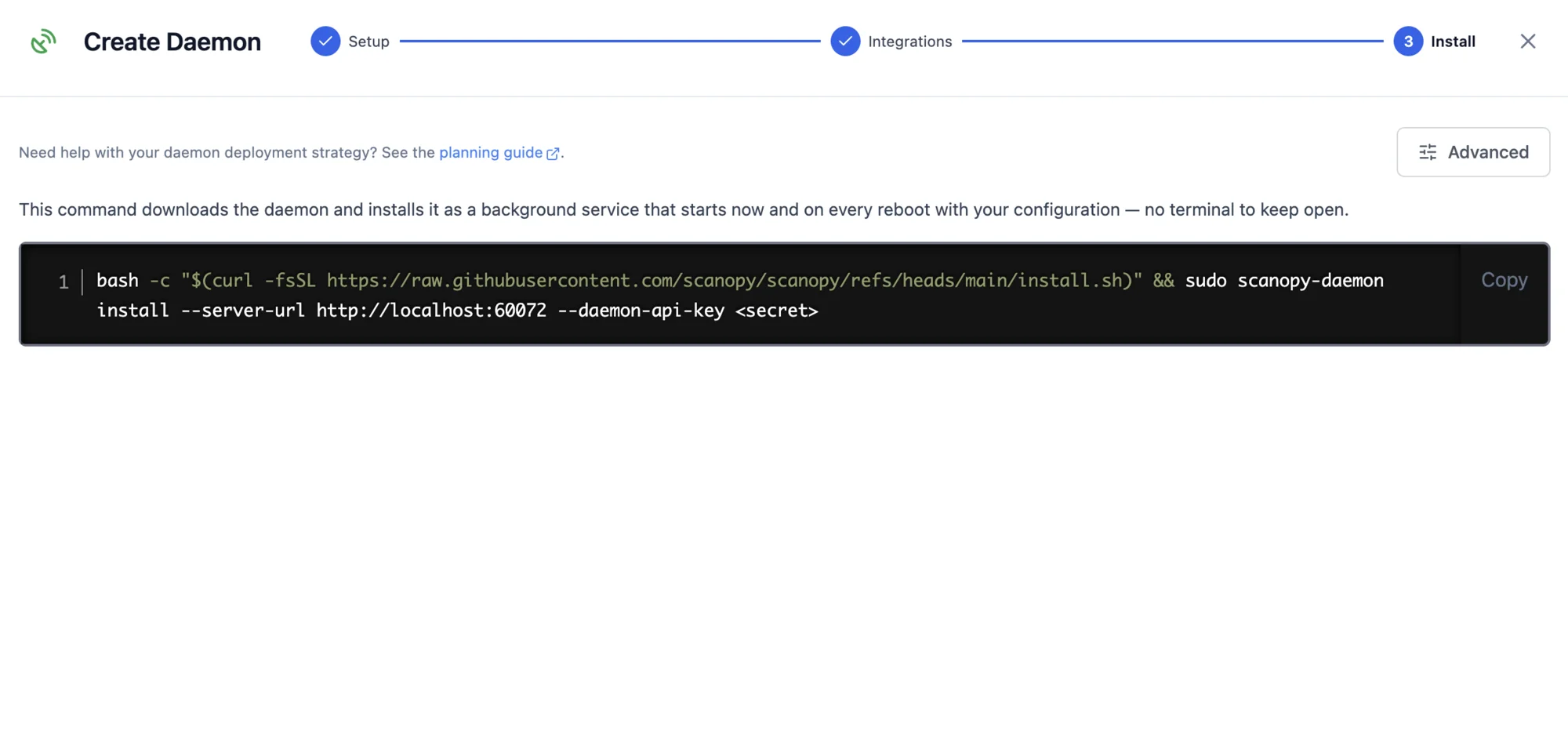
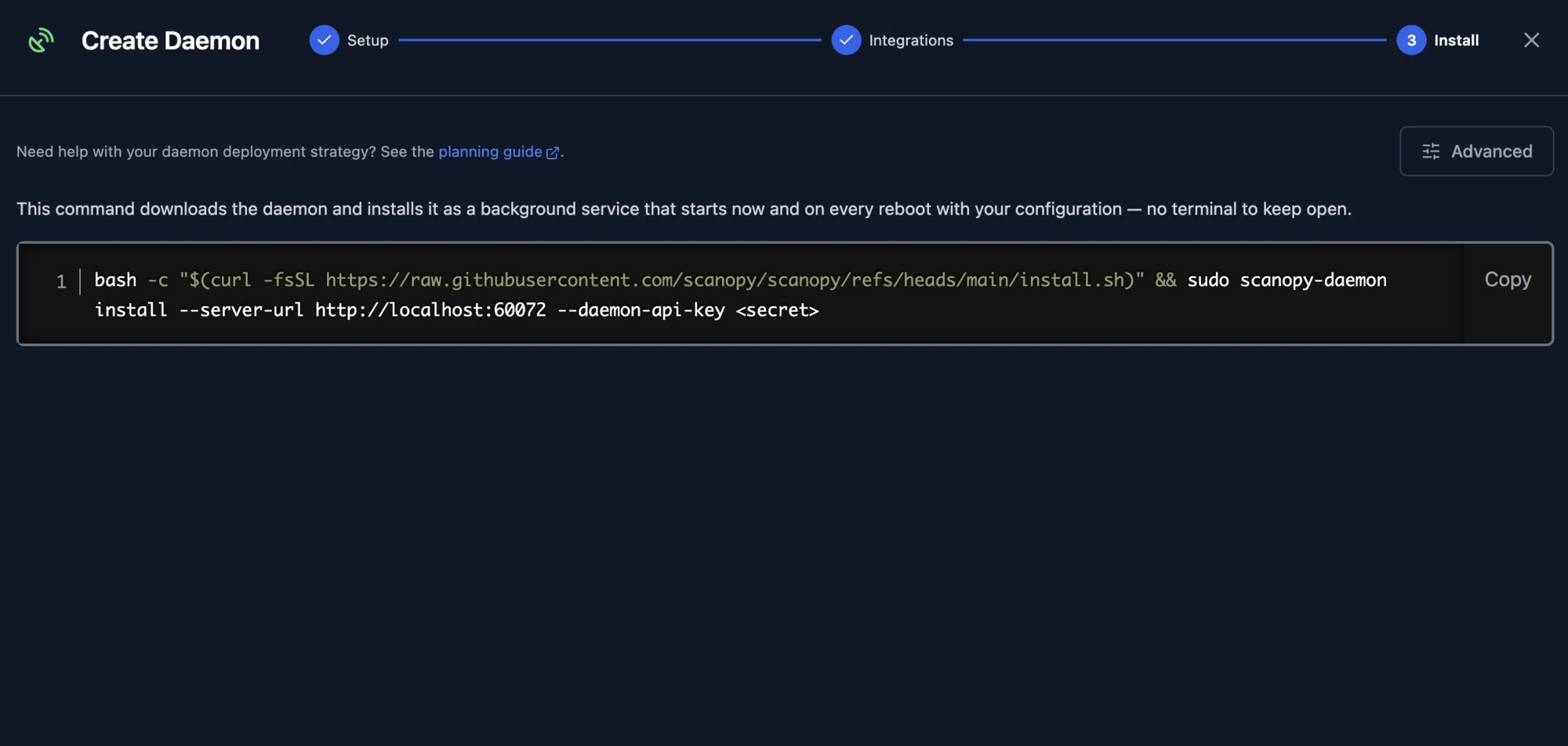
| OS | Method | What you get |
|---|---|---|
| Linux | Binary | A command that fetches the daemon binary and installs it as a native service |
| Linux | Docker | A ready-to-run docker-compose.yml plus the SCANOPY_* environment variables it's configured with |
| macOS | Binary | A command that fetches the daemon binary and installs it as a native service |
| Windows | Binary | A PowerShell command that downloads the binary and installs it as a Windows service |
| FreeBSD | Binary | A command that fetches the daemon binary and installs it as a native service |
The generated artifact carries the daemon's API key, and the key is shown only here. Copy it before leaving the wizard — you can't retrieve it afterwards. If you lose it before installing, you can mint a replacement from the daemon's management modal; once the daemon has connected, re-keying it is blocked, because a fresh key would cut off the running daemon.
Any advanced settings you set in the wizard are baked into the artifact, so the installed daemon comes up already configured.
For help choosing a polling mode and planning where to place daemons, see Planning Daemon Deployment.
Running as a Service
scanopy-daemon install places the binary, writes the daemon's config.json, and registers a native background service that starts immediately and on every reboot.
The command on the wizard's Install step already does this. Copy it from there rather than assembling one: the wizard and the management modal build it against your server's URL and the daemon's key.
Everything except the connection flags is read from config.json, so no secrets appear in the service definition or process arguments. Re-running install is idempotent. A non-elevated invocation prints the exact sudo/administrator command to re-run, and on success it prints the config and log paths it settled on.
Verify the service and view its logs:
| OS | Service | Status | Logs |
|---|---|---|---|
| Linux | systemd | systemctl status scanopy-daemon | journalctl -u scanopy-daemon -f |
| macOS | launchd | sudo launchctl print system/com.scanopy.daemon | /var/log/scanopy/scanopy-daemon.out.log and ~/Library/Logs/scanopy/scanopy-daemon.log |
| Windows | Service Control Manager | Get-Service scanopy-daemon | %ProgramData%\scanopy\scanopy-daemon.log |
| FreeBSD | rc.d | service scanopy-daemon status | /var/log/scanopy/scanopy-daemon.log |
To stop and remove the service, use sudo scanopy-daemon uninstall — see Removing a Daemon.
Prefer to run the daemon in the foreground (e.g. for a quick test)? Run scanopy-daemon directly with the same flags — it runs attached to your terminal and stops when the terminal closes.
Running several daemons on one host? Each install takes its own numbered slot (scanopy-daemon, scanopy-daemon-2, …) automatically, so installs don't overwrite each other. Run scanopy-daemon list to see what's installed. See Scanning Isolated Networks from One Host for the full workflow.
Integrated Daemon (Self-Hosted)
Self-hosted Docker Compose deployments include an integrated daemon managed as part of the stack: server setup provisions it and its API key, and it upgrades with the server. Nothing to install or configure — see Upgrading a Self-Hosted Server.