
Quick Start
Install Scanopy on your own server, or start on Scanopy Cloud, and run your first scan.
Self-Hosted
1. Install the server
Follow Installing a Self-Hosted Server. The Docker Compose install is the quickest path. On a commercial plan, select Commercial Edition at the top of that page.
2. Complete onboarding
Open your server URL. The onboarding wizard walks you through initial setup.
3. Wait for your first scan
Docker Compose deployments include an integrated daemon that automatically begins scanning your network after onboarding. The first scan is a light scan that discovers hosts and open ports. A typical /24 subnet takes around 30 minutes depending on the number of active hosts. Watch progress in Discover > Scans.
4. Explore your network
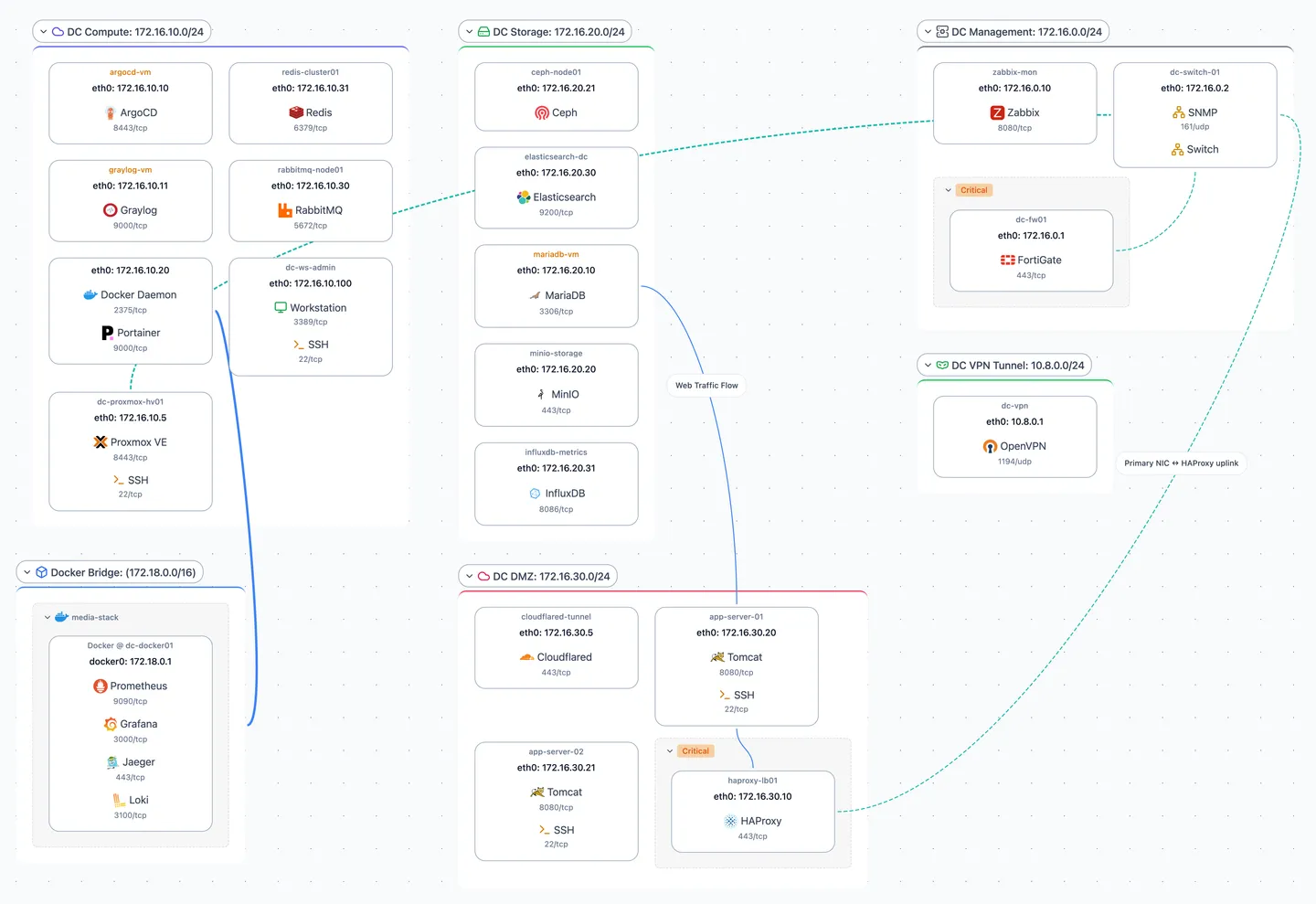
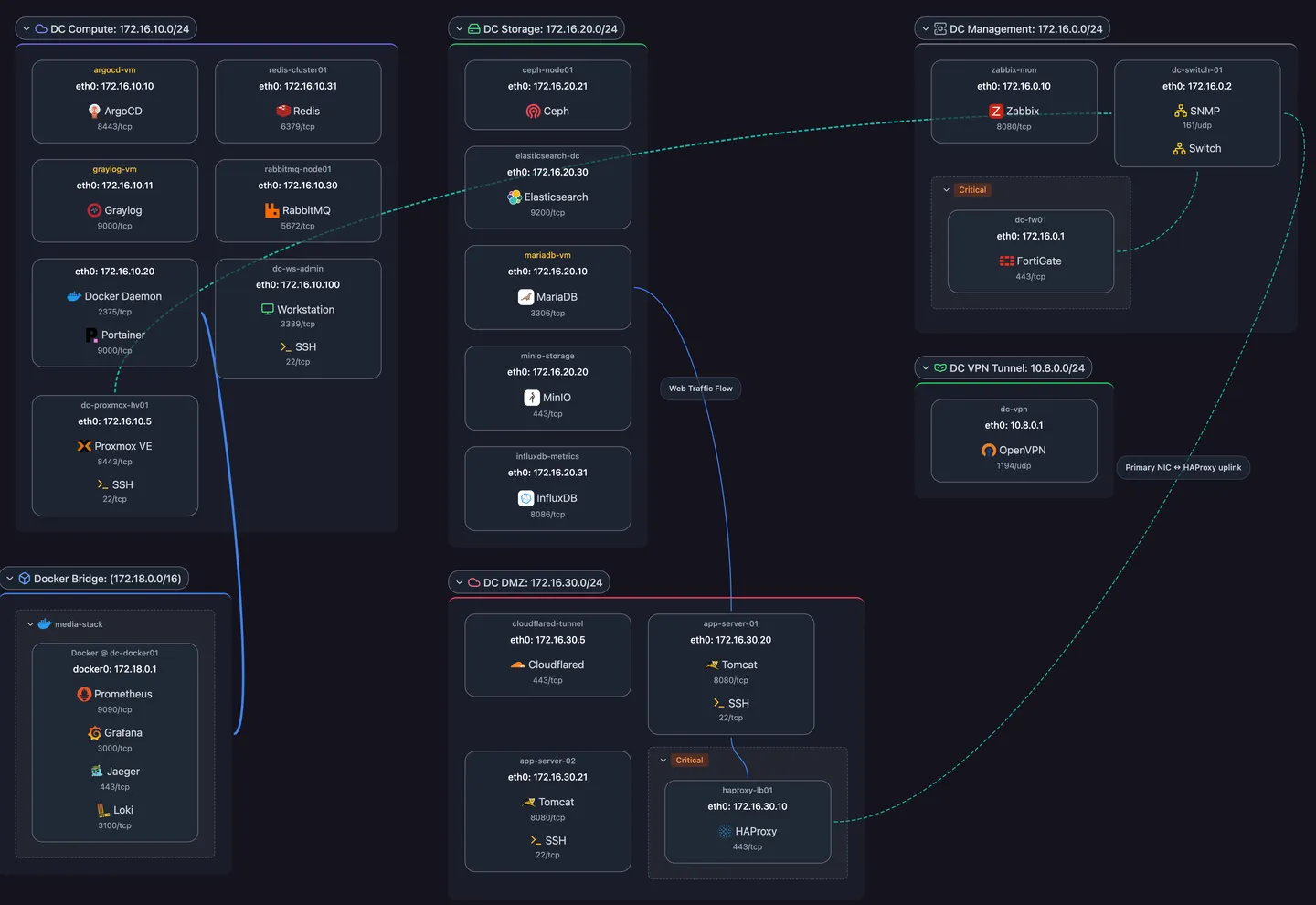
- Topology: interactive diagrams of your infrastructure in four views
- Assets > Hosts: all discovered devices
- Assets > Services: detected services across your network
To scan additional networks, deploy daemons on other segments. See Planning Daemon Deployment.
Cloud
Scanopy Cloud runs the server for you.
1. Create your account
Open the Cloud tab on the pricing page and pick a plan. The onboarding wizard first asks where Scanopy will run, Scanopy Cloud or your own server. It then guides you through creating your organization, your first site, and your account, and asks you to choose your plan.
2. Install a daemon
After onboarding, you'll be prompted to install a daemon. A daemon is a lightweight agent that runs on your network, discovers hosts and services, and reports findings to the server. Follow the install command shown in the modal for your platform, or see Installing Daemons for details.
3. Run your first scan
Once the daemon connects, go to Discover > Scans and click Run on the discovery. A typical /24 subnet takes around 30 minutes depending on the number of active hosts. Progress shows on the same page.
4. Explore your network
The same views as Explore your network in the self-hosted steps.
Next Steps
Learn the features:
- Discovery — How scanning works and how to configure it
- Topology — Visualize your infrastructure in four views
- Hosts & Subnets — Organize your discovered data
- Organization & Access — Users, roles, sites and API keys
Expand your deployment:
- Planning Daemon Deployment — Decide how many daemons you need and where to place them
- Installing Daemons — Install daemons as a service